May 22, 2013

Laptop Theft: Anything But Uncommon

According to University Police, 17 laptops have been reported stolen on the Ole Miss campus since August 2012.

It’s important to keep in mind that this number doesn’t reflect stolen smartphones or tablets, only laptops. With technology doubling every 2 years, there are multiple ways to keep yourself, and your mobile devices, protected. The best approach to defending yourself against thieves is to have multiple layers of security. This includes using software to locate your devices in case of theft, encrypting stored personal data, and writing down serial numbers, MAC addresses, and model numbers.  The most effective theft deterrent, however, is using common sense.

UNPROTECTED MOBILE DEVICESlaptop002

Don’t leave your devices unprotected, not even for a second. A majority of thefts occur when students step away from their mobile devices during study sessions, prior to class, or in offices while leaving the door unlocked.  It’s important to remember never to leave your hardware lying around, as it takes only seconds to pick up an unattended device.  Some theft deterrents for laptop thieves include items such as visual stickers, labels, or metal plates indicating the laptop can be traced, cable locks that can anchor the hardware to a chair or table, or even laptop theft alarm systems.

GPS TRACKING SOFTWARE FOR MAC AND PC

For Mac hardware, it’s possible to set up location software, called Find My iPhone, using an iCloud account. This allows you to locate your MacBook, iPhone or iPad, using their built-in GPS capabilities. You can also remotely lock the device, wipe it, have it play a sound, or even display a message on the screen. For PC’s, a program called Prey can help you locate your laptop in the event of theft, and offers many of the same options as the Find My iPhone software.

MAKE YOUR LAPTOP IDENTIFIABLE

There are ways to make sure your laptop is harder to sell in the event of theft, which can be a theft deterrent on its own. One method is “tagging” your laptop, which entails applying a metal security plate with a customized barcode linking to the owner’s information. One of the more common brands of this product is called the Stop Tag, which boasts requiring 800 pounds of pressure to remove, and also has a chemically bonded tattoo underneath that says “Stolen Property.”

PROTECT YOUR PRIVACY

According to a report by Javelin Strategy and Research, in 2012 there were over 12 million cases of identity fraud. It’s important to make sure that your personal information is secure on any of your devices, especially laptops.  To keep personal information safe, it’s important to choose strong passwords comprised of a mix of upper and lowercase letters and numbers. It’s also recommended to change your passwords frequently. For added security, you can set up an encryption for sensitive files on your devices, requiring a special password to be able to access them.

ENCRYPTING YOUR PERSONAL INFORMATION

Setting up part of all or your hard drive to be encrypted can help keep your personal information safe in the event of theft, and is relatively easy to do. For Macs running Mountain Lion, you simply use disk utility to create a partitioned section of the hard drive, choose 128 bit or 256 bit encryption (one is more secure, but slower,) and then enter the password you want to use for access to the partitioned drive. (Instructions Here) For PCs, AxCrypt, allows the encryption of single files, and is the self-proclaimed  leading open-source encryption program  for Windows.  (Instructions Here)

* It is important to note that if you encrypt your data, you MUST remember the password used for the encryption. If you forget or lose it, you will be unable to retrieve any of the encrypted data.

REPORT ANY THEFTS IMMEDIATELY

In the event of theft of any personal devices, be sure to notify University Police immediately. The longer you wait to notify the police, the less likely you will be to find stolen devices. UPD can be reached at 662-915-7234, or via email at upd@olemiss.edu.


Using Electric Utility Carts for Transportation on the UM Campus

Utility Carts vs. Campus Vans

In November 2001, The Office of Information Technology (IT) purchased its first utility cart. IT was one of the first groups to have carts on the main campus.  The campus was growing and streets were closing, making it almost impossible to continue using our vans for access.  Due to the increasing difficulty in getting around campus to make deliveries and pick-ups of equipment, IT opted for a utility cart.

Once we started using the carts for on-campus needs, it became evident that a utility cart size allows for easier access to campus buildings due to the smaller size. Currently, the utility cart population on campus is approximately 250.  While the majority of carts on campus are still gasoline powered, the number of electric powered carts is increasing as gasoline carts are taken out of service.

Electric or Gas Utility Carts?

In 2012, IT purchased the first electric utility cart for our department through our area Club Car distributor, Ladd’s in Memphis, TN.  Based on our testing, both gasoline and electric carts operate in a similar fashion.  For example, both will operate at a top speed of 15 mph.  In areas such as payload, comfort and performance, there are no significant differences.   However, two noticeable improvements to the drivers of the electric powered cart are the lack of gasoline fumes inside the cab and the quiet ride.

Regarding the purchase price, the cost of an electric powered cart was approximately $200 more than a gasoline powered cart with similar specifications.   When comparing ongoing fuel costs, there are the routine gas fill-ups and oil changes for the gasoline utility carts. For the electric powered cart, the fuel expense comes down to the daily power recharge through a standard wall power outlet (110) and replacing the batteries every five years. Holding all fuel charges constant, we don’t see a significant cost difference over a five year period.

Electric Utility Cart Battery Maintenance

Battery maintenance is actually very simple.  Just check the water levels in the batteries and add distilled water every month as needed. In addition to checking the water levels, we recommend charging the electric cart daily. The cart will come with a charge cable that plugs into a standard wall power outlet (110).

Performing battery maintenance monthly and charging the batteries daily should extend the battery life to approximately five years.   Neglecting to provide proper battery maintenance may decrease the life by up to two years.

Further Information

If you have more questions about our experience with purchasing and using an electric utility cart, please contact Ron Savell at ron@olemiss.edu. Ron can also connect you with our area distributor, Ladd’s in Memphis.

Computer Lab Enhanced in Weir Hall

Weir Hall Media-Scape Table

Media:scape Table

The Galtney Center for Academic Computing in Weir Hall opened in November 2002.  The Center was made possible by a $4 million gift from Ole Miss Alumni Will and Susanne Galtney of Houston, TX.  Commonly referred to as the Weir Hall computer lab, students and employees have access to 50 computers around the clock.   During the Fall and Spring semesters, we have approximately 500 visitors daily (Monday – Friday).

In summer 2012,  the Office of Information Technology (IT) made plans for enhancements.    With the assistance of Facilities Planning, these enhancements are complete and available for students and employees today.  Below are the highlights.

Collaboration Deck

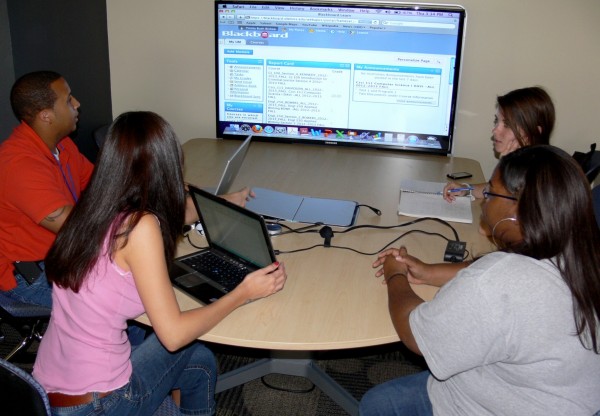
The plateau area to the left of the central lab desk has been significantly remodeled to enhance collaboration, especially for those with smartphones, tablets and laptops.   Included is a small coffee table area complete with Jenny Round chairs, an eight foot wide glass whiteboard and finally a Steelcase media:scape table for small group meetings.  The media:scape table allows participants to share their screen or desktop in HD quality on our 55 inch HDTV.  Please drop by Weir Hall or check out the photos on our IT labs site to preview these enhancements.

Wide Screen Monitors

Gone are the days of 19 inch monitors in the lab.  IT installed 30 wide screen monitors (22 inch) over the summer.

Bottled Water

We now welcome your bottled water in the computer lab area!   If you want to munch on Doritos or slurp Starbucks coffee, you can still use the tables in the Weir Hall hallways.  Just remember, the Ole Miss home run shower is allowed at the baseball stadium, not in the computer labs.

Future Plans

Now that we have completed the physical enhancements, next up are discussions to implement single sign-on.  That will mean students and instructors visiting Weir Hall labs could login to computers and release printer jobs using their WebID.   Stay tuned.

Product Review: Solid-State Drives

Hard disk drive technology has matured over the years, with drives spinning faster, achieving greater data transfer rates, improving at error checking, and attaining tremendous storage capacities.  Those gains, however, have come at the cost of increasing disk fragility. Older SCSI and ATA drives could pretty much be counted on to safely store data for up to a dozen years whereas modern drives have a life of five to seven years.

In recent years, a new technology called flash technology has the speed and reliability of RAM, married to the permanent storage capability of a hard drive. We first saw these appearing in the form of flash cards for cameras, or “thumb drives” for computers.  This same technology, scaled way up, is used to produce solid-state drives (SSD), which can finally serve as a replacement for hard disk drives (HDD).

SSDs operate at many times the speed of conventional HDDs – speeds approaching that of RAM and microprocessors. They have no moving parts at all. So, there are no friction or the vibration failures one sees in HDDs.

Detailed Review

Daniel Cerveny and I were supplied with a 120 GB 2.5″ Kingston SSD.  I conducted tests on it using my MacBook Pro as a test-bed, and then handed it over to Daniel for testing using a PC laptop of similar speed.  The results of the tests turned out to be comparable between the two platforms, as we will illustrate below.

Operating System Installation

After I installed the SSD in my laptop, I formatted it, and installed MacOS 10.7 on it, a task that takes 21 minutes on a standard HDD.  It took 21 Minutes on the SSD, also. Windows performed similarly, completing the installation in 26 minutes with both drives. In both cases, the limiting factor was probably not the speed of the drive, but rather the installation media.

Drive Encryption

Many of our senior administrators have sensitive material on their computers and are required to encrypt their drives using Apple’s FileVault, Microsoft Bit-Locker, or the TrueCrypt freeware. This applies a 128-bit AES Encryption to the entire drive – a one-time only, hugely time-consuming task that typically takes almost a minute per GB on a standard HDD.  In the Mac test, a 160 GB drive required 3 hours and 9 minutes to be fully encrypted.  The SSD managed it in just 18.5 minutes. The results seemed a little too good to be true.  When I looked into why this was, I found it was because an SSD only encrypts the portion of itself that’s in use while storing the encryption key to apply to new sectors as they’re activated for storage.  That doesn’t detract from the impressive performance, though!

The PC tests were performed using TrueCrypt, with the HDD clocking in at 3 hours and 26 minutes, and the SSD coming in at just over 29 minutes. An important thing to note about the way TrueCrypt encrypts SSD drives, is that when performing a full drive encryption, it is recommended that the drive is encrypted before any sensitive data is moved to it. Because of the way wear leveling works on an SSD, it is possible that files already on the drive will not be encrypted.

Large Data Block Transfer

This is the meat and potatoes in my line of work – moving data to and from a server or external drive, using USB 2, or Firewire 800.  I connected my laptop to a server via a Firewire 800 cable, started it up in target-disk mode, and moved a folder containing about 61 GB of data.  Using a standard HDD, this transfer took 21.5 minutes – the SSD performed better at 17.5 minutes, but I was still disappointed, given the SSD’s reputation for speed. Again, however, the speed of the Firewire interface, the internal buffers, and the server itself, limited how quickly the operation could be performed.

The PC test involved moving 66 GB of data from a folder shared on the network. The HDD performed the transfer in 26 minutes, while the SSD did it in 17 minutes. While 9 minutes may not be impressive, it is noticeable, and a welcome improvement.

Time to Boot

Finally, a small task that annoys everyone is the time it takes to boot the computer!   On the Mac, the SSD made it from cold shutdown to the desktop in 16 seconds; a standard HDD did the same in 42 seconds. The PC results were more dramatic. While the HDD booted into Windows in a frustrating 3 ½ minutes, the SSD accomplished the same task in only 40 seconds. Here, where we are performing a task limited only by the capability of the drive, the RAM, and the processor, the SSD really comes into its own. Booting the computer, however, is not the only time the SSD would be able to run free:  we could expect the same performance during photoshop or video renders, or other tasks not dependent on an external component.

Costs

Perhaps the most serious drawback to SSD technology is the cost.  In a survey of currently available drives from different vendors (Newegg.com, and Tigerdirect.com, among others), I found the price per GB of SSDs was roughly double the price for standard hard disk drives.  Fortunately for all, this drawback is a fleeting one:  as this technology matures, the price can be expected to trend sharply downward, very quickly.  Among other things, manufacturing an SSD requires far less human intervention, and far fewer steps than does manufacturing a standard drive with platters and read-write heads!

Capacity

The only other serious draw-back to SSDs involves their capacity:  currently, the highest capacity SSD one can find is about 500 GB, while conventional drives of several terabytes are available.  As with cost, however, this drawback will only be a temporary one:  as the technology matures, higher capacities will be available.  Given the compact size of the drives, even when the capacity of the chips is reached, it will  be a simple matter to combine a number of small drives into a single unit of very high capacity.  At this point,  we’ll also have the option of using RAID formatting for situations where the safety of the data is more important than capacity of storage.

Conclusion

For those on a tight budget or those in need of high storage capacity, the drawbacks of SSD technology outweigh the speed benefits.  We expect this to quickly change.  I predict, as early as next year, we’ll begin to see drives of high capacity and blinding speed available at comparable prices of conventional drives.

Standing Desks in the Workplace

Pub Table

In recent years, we have seen continued publicity about the health benefits of a standing desk environment. Health web sites such as WebMD cover the possible problems of sitting too long. If you and your doctor think a standing desk configuration is right for you, below are some alternatives to consider.

Choices to Consider

The adjustable aluminum laptop desk is a cheap solution that allows the use of an existing desk, where individuals can switch between a standing and a sitting position. While designed primarily for a laptop, this desk can be used for writing or reading tasks as well.  For those with a desktop computer or if space is a concern, several alternative models can be found at Ergodesktop. Like the laptop desk, these sit on top of an existing desk.

pub table is an additional desk worth considering. Various retailers carry pub tables in a variety of shapes and sizes. Heights for these pub tables are typically fixed, so be sure to shop around in person. Another option is the Safco Alphabetter. Unlike most pub tables, the height on the Alphabetter desk is manually adjustable in some Safco models. For individuals that need to keep moving, an added feature is a footrest bar that swings. While targeted at school children, the Alphabetter standing desk can be used to hold up computer equipment.

Finally, there are alternative office desks. GeekDesk carries adjustable desks products. GeekDesk models are motorized to raise and lower at the touch of a button. If walking is what the doctor ordered, Lifespan carries a treadmill desk. A walk at a casual one mph pace may not sound like much. However, a one mph pace for four hours translates to a four mile walk!

Final Comments

The standing desk options are just a few alternatives. When deciding on a standing desk solution, remember to buy proper support shoes. Running shoes with cushion soles are great.  Also, you can shop at Shoes for Crews or similar retailers for formal, business or outdoor shoes that provide slip resistance and support.

Easy-to-Use Data Protection with Hardware Encryption Devices

Encryption is a technique to protect data by making it unintelligible to unauthorized users.  Historically, using encryption techniques to protect files has been difficult.  The process frequently requires the assistance of an IT expert.

Times have changed.  Over the last few months IT staff members have been testing the latest hardware encryption devices that provide ways to protect data with few hassles.  Two devices emerged that combine exceptional security with ease of use:  the Corsair USB Padlock 2 flash drive and the BUSlink CipherShield AES 256-bit external drive.  Both devices use USB to connect to a computer.  Both devices work with Windows, Macintosh and Linux computers without additional software installations.

The Corsair USB Padlock 2 device has built in 256-bit hardware AES encryption for locking the device from unauthorized access.    AES is an acronym for American Encryption Standard, an encryption standard adopted by the U.S. Government.   The 256-bit just means the encryption is the best you can get today.

On the Corsair flash drive, there are five buttons to create a four to ten character pin.    Initially, you create a personal pin and memorize it.  Then before plugging the device in to your computer, enter the correct pin to enable the drive.    This Corsair flash drive contains built-in hacking detection that locks the device for two minutes after five failed attempts.   Corsair USB Padlock 2 drives are currently priced at approximately $30 for the 8 GB model and approximately $50 for the 16 GB model.

The BUSlink CipherShield AES 256-bit external hard drive offers more storage capacity than a USB flash storage device, up to 6 TB of storage on some models.  Support for USB 3.0 is available for faster access.  Like the Corsair USB drive, the Buslink CipherShield drive uses AES encryption.  The convenient feature about the CipherShield models is the easy encryption method.  It uses a physical key.  Plug the key in to the drive and access is granted.   Remove the key and data is encrypted and inaccessible.

Two keys are delivered with the models.   Since the key is essential to accessing drive data, DO NOT carry, ship or store the key in the drive.   This negates the data security and would be similar to locking an office door but leaving the key in the door knob.   Second, the BUSlink CipherShield drive is just like any external hard drive and is sensitive to damage via water, dropping or any physical hazards.  The BUSlink CipherShield drives range in price based on storage capacity.  Drive sizes range from 160 GB to 6 TB.   Currently, a 1 TB CipherShield AES 256-bit Encryption External Hard Drive sells for $559.99 through Buslink.

If you have questions about these products, please contact David Drewrey, the University of Mississippi Security Coordinator and Director of Telecommunications.

End of an Era – Compaq Server Retired

Compaq ProLiant Server 6000

March 2, 2012 will mark the end of an era within the University Data Center.  On that date, the Compaq ProLiant 6000 server that once powered the University’s E-form system will be officially retired from service.   This server was first put into production service in early 2000 and has served the University without any major issues for the past twelve years, which is a remarkable accomplishment.

The launch of E-forms 2.0 within myOleMiss in the summer of 2011, along with the recent completion of migrating all of the historical E-forms into the new application, was the catalyst for this retirement.

“The age of the hardware platform was one of the driving forces behind the development and launch of E-forms 2.0,” notes Al Ling, Director of Enterprise Applications.  “Now that the migration of the historical E-form data has been completed and is now available within E-forms 2.0, it makes sense to retire this server from productive use.  A heart-felt thank you goes out to the Technical Services staff for keeping this server fully operational for the past twelve years.”